Why I built VideoVenture workspaces for small business teams
Shared video projects, alternate cuts and timestamped review links, built from the revisions my own team kept asking for. Here's how we use them.
Brayden5 min read
I built workspaces because I use my own product every day.
I've worked at several small companies over the years, and the same problem keeps coming up. Everyone wears a lot of hats. When we need a marketing video, we have to find an editor, get them up to speed on what we do, explain the direction, and find the budget. That gets expensive and cumbersome when you need to do it regularly.
When I started making videos for us with VideoVenture, the feedback was good. Then came the requests.
"Can we change this word?"
"Can we update that visual?"
"I don't like the colour theme. Let's swap it."
Those are reasonable things to ask. The video needs to work for the people using it. But I was still the person taking everyone's notes and making every change.
That was the reason for workspaces. If we could all get into the same project, we could collaborate on the video until everyone was happy with it.
A shared workspace for the people making the video
A VideoVenture workspace gives your team a shared place for its video projects. You invite colleagues as editors, and they can open those projects and work on them using the team's credit pool. Everyone signs in with their own account.
Each project has a team channel. That's where we can talk about what needs changing and ask Vee, the video assistant, to make an edit. A request can be as small as changing a word or as broad as trying a different visual direction.
For example, a teammate could write:
@Vee, change the opening headline to "Meet your next favourite coffee." Keep the footage and voiceover as they are.
That's an example request, but it's the kind of small revision that used to come back to me. Now another editor can make the request in the project where we're already discussing the video. We can watch the result and decide whether it works.
The workspace owner can also set a company brand as the default for new workspace videos. It gives everyone the same starting point for the logo and colours, instead of asking each person to set them up again.
Branching came from my boss wanting to try another idea
My boss often had a different idea he wanted to test. We could have a version that was working, and he'd want to see what happened if we took it in another direction.
That's where branching came from.
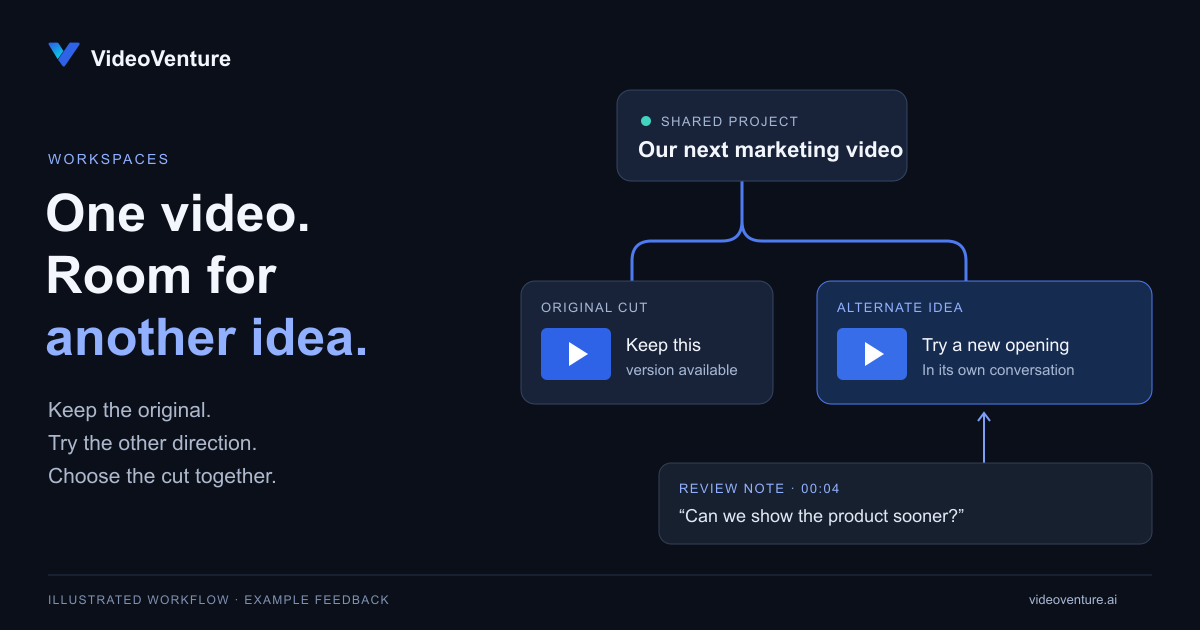
You can fork a video from an existing render and work on another cut in its own conversation. The original stays available while you try the idea. When you've watched both, you can promote the version you prefer.
My boss constantly had other ideas he wanted to test out, so that's where the branching feature came from.
This is useful for more than choosing between two creative directions. One editor can finish the main video while another works on a shorter cut. Or you can make a branch specifically for a round of feedback, so you can compare the revision with the original before deciding to use it.
It gives us a way to answer "What if we tried this?" by making the version and watching it.
Outside reviewers can leave notes on the video
Some of the people who need to sign off on a video aren't part of the team making it. They need to watch it and tell us what needs changing.
The review feature came from that problem. You send a link, and the reviewer can leave timestamped feedback on the video without creating an account or taking an editor seat. Their notes stay on the review page; they don't need access to the team's project channel.
I can then ask Vee to work through that feedback. Here's an example of how I'd keep the original available:
- Send the current version's review link to the person approving it.
- Collect their notes at the relevant moments in the video.
- Fork that version into a branch for the revisions.
- In the team channel, select that branch and ask Vee to apply the feedback.
- Watch the revised cut before sharing it for another review.
A request might be:
@Vee, read the review notes on V2 and apply them to this branch. Keep the original version unchanged. Tell me what you changed and flag anything that needs a decision from us.
I still watch the result. A note can be ambiguous, and a change can look different from what someone had in mind. The review loop gives us somewhere to work that out.
You can bring your assistant into the workspace too
We've also added workspace access through VideoVenture's MCP connection. That lets you work on a video through a compatible assistant and continue the project in the web studio.
During connection, you choose your Personal account or a workspace where you're an owner or editor. That connection stays with the account you selected. To choose another account, reconnect and select it.
For a workspace, the owner sets one shared MCP spending allowance under Settings, Connections. Editors can use it without being asked to set a limit during setup. Connecting another assistant doesn't reset the allowance.
There are two details worth knowing before your team starts using it. The MCP allowance draws against the owner's existing credit balance; it doesn't add credits. It also has no monthly reset and only caps MCP spending, so it is separate from the plan's credit renewal and from work you do in Studio.
Workspace projects are shared, but an assistant's uploaded media and character library remain tied to the person who connected it. Choosing a workspace doesn't turn every personal asset into a team asset.
Start with a video your team actually needs
I built this for small businesses trying to make quality marketing material without having hundreds or thousands of dollars available for every video. That's been a recurring problem for me over the past few years.
If that sounds familiar, I'd start with one project. Choose a video you need, invite the colleague who usually sends you revisions, and make the first cut together. Try a branch when someone has another idea. Send a review link when it's ready for someone outside the team to approve.
Workspaces require the Team plan. You can see the current editor seats, shared credits and pricing on the plans page. If you're already signed in, Workspace settings is where you set up the workspace and invite people. Creating one from an existing individual plan changes the subscription to Team, so check the billing details before confirming.
I use VideoVenture daily to make our marketing videos, and that keeps turning up rough edges. The requests that led to workspaces, branching and reviews were part of my own work. I'll keep using it that way, because I want to find those problems while making something I actually need.